Still Manually Splitting Chat Records for Evidence? Time to Automate | Automated Evidence Screenshot and PDF Layout Generation Based on PaddleOCR
Introduces an automated tool using PaddleOCR and FFmpeg to extract chat record screenshots from video or long images and generate properly formatted PDF evidence files for litigation, eliminating manual screenshot segmentation and layout work.
When preparing evidence, you often need to capture chat records or long screenshots.
There are usually two methods:
Screen recording and then manually capturing frames, or using PotPlayer to capture by the second and selecting the needed parts.
Because the scrolling speed varies, you have to pick them one by one.
Or take a long screenshot and then manually split it into shorter images.
But each screenshot may have different lengths, and you still need to screenshot-paste-screenshot-paste many times.
Finally, you have to integrate all these images, manually place them in Word or PDF for layout, and if an image is too long, manually shorten it.
Very tedious.
Why not automate it?
*This article represents the author’s personal opinions and should not be considered as legal advice or opinions.
I. Demonstration
Video Processing
Simply upload a video and set simple parameters. Click the start button, and the program will automatically capture frames from the video, use AI model-based OCR to automatically determine and retain screenshots with a certain amount of overlap, and lay them out to generate a PDF according to your requirements.
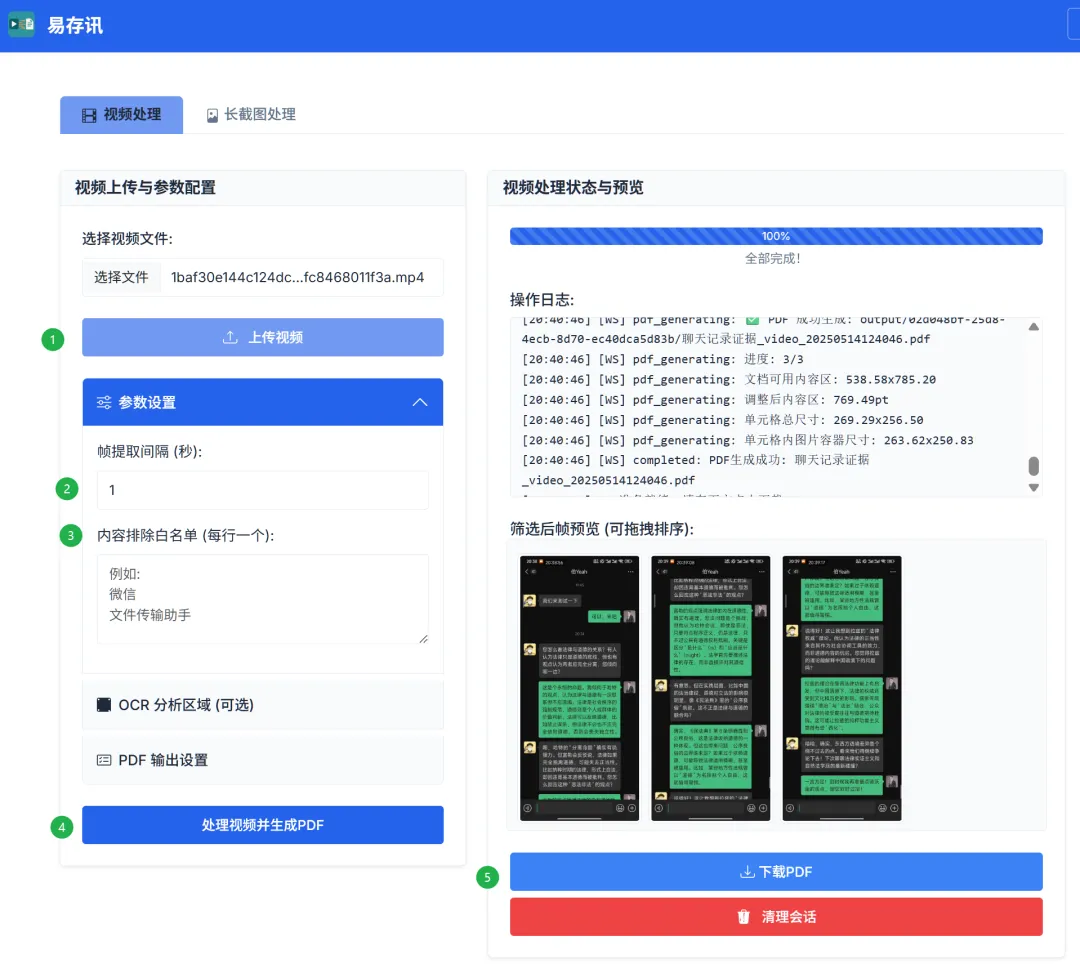
Select a local video file through [Select File], then click [Upload Video] to complete the preparation.
In the parameter settings, the frame extraction interval specifies how many seconds between each captured frame. Fewer screenshots mean faster processing, but there is a risk of missing content.
Exclusion whitelist refers to content that should be ignored during OCR, helping to avoid misidentifying “overlap areas” (i.e., overlapping portions of the evidence content).
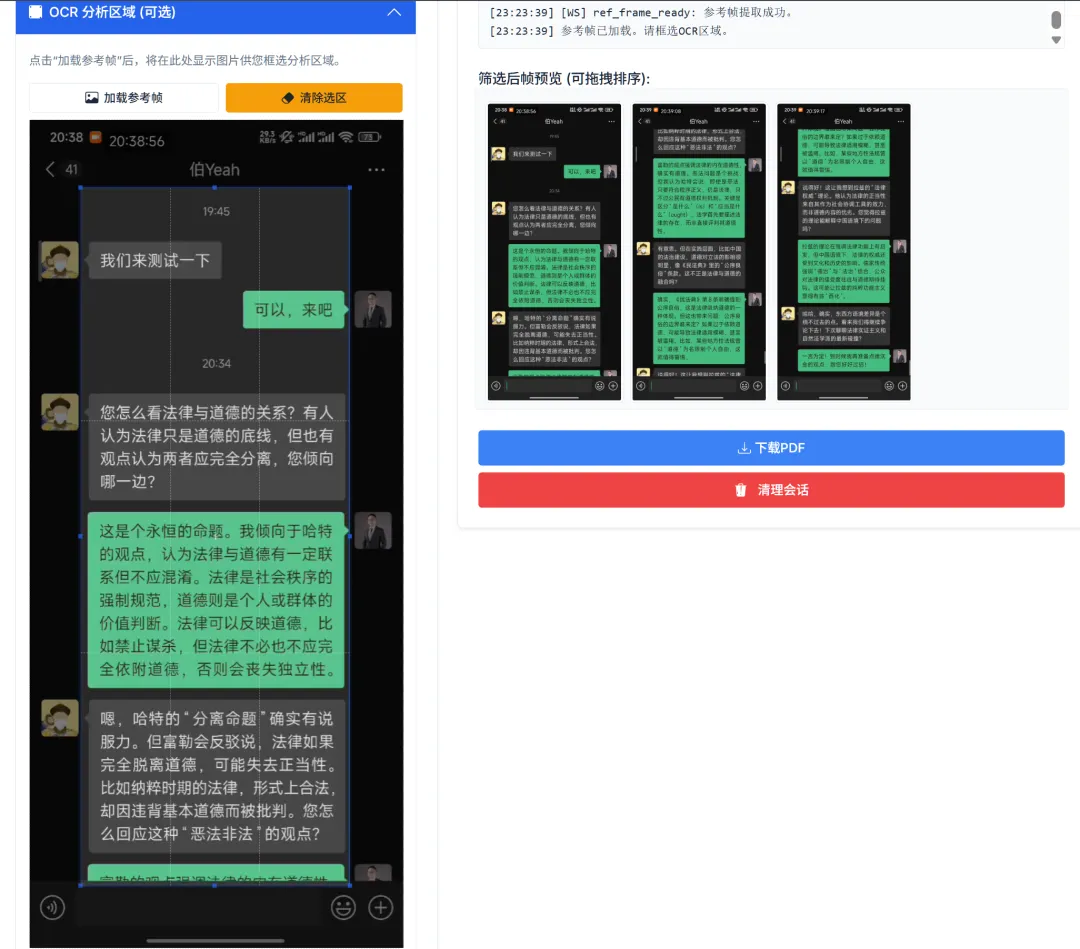
After clicking [Load Reference Frame], you can define the specific area for OCR analysis within the reference frame, reducing misjudgment of overlap areas caused by usernames, buttons, timestamps, etc.
If no reference frame is set, OCR will process the full-page text, and overlap area determination will also use full-page text. For chat records, setting a reference frame is recommended to avoid many misjudgments.
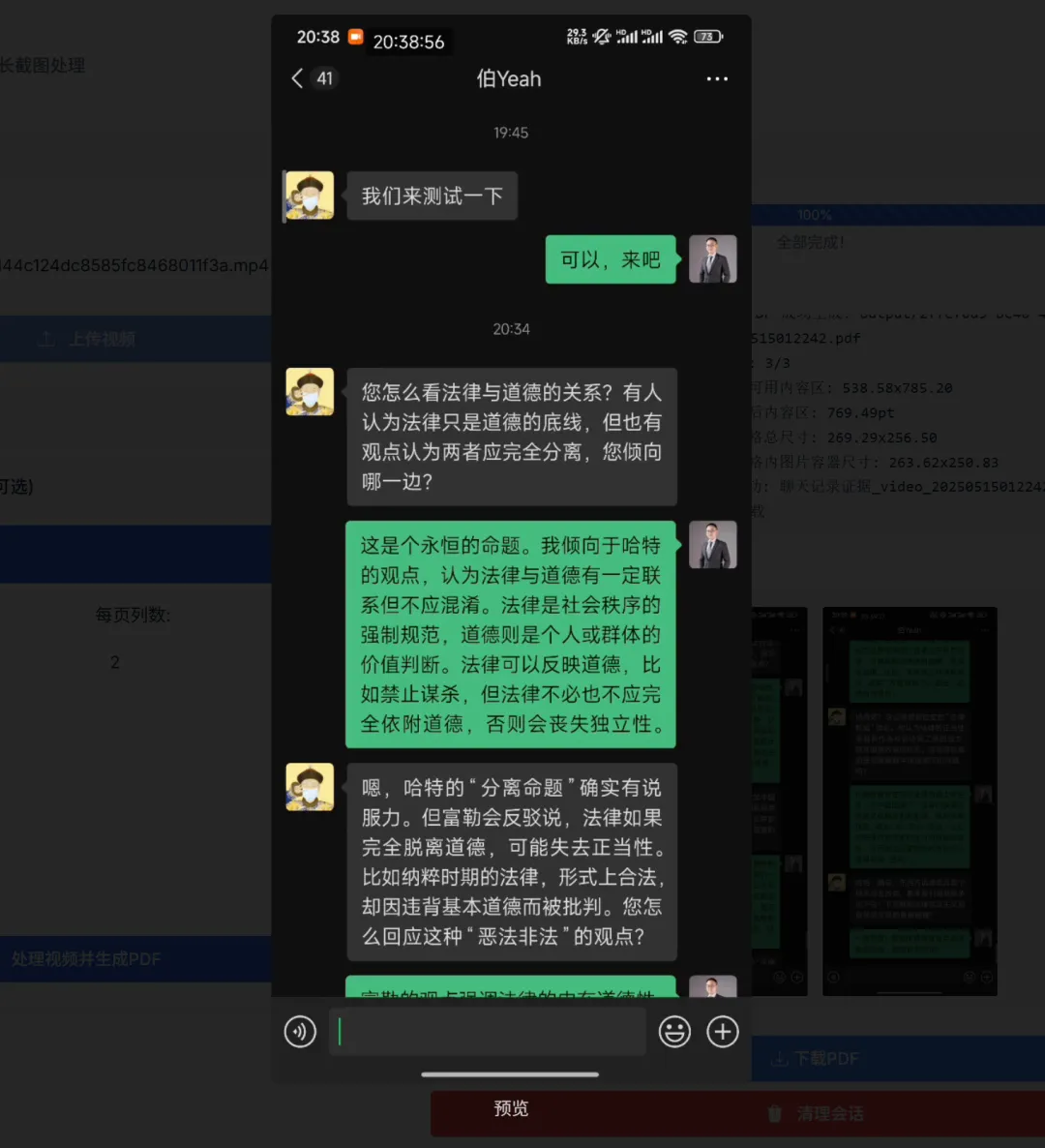
For example, for a WeChat chat window, it’s recommended to select the middle area (between the username bar and input box, excluding user avatars) as shown above, which greatly improves accuracy.
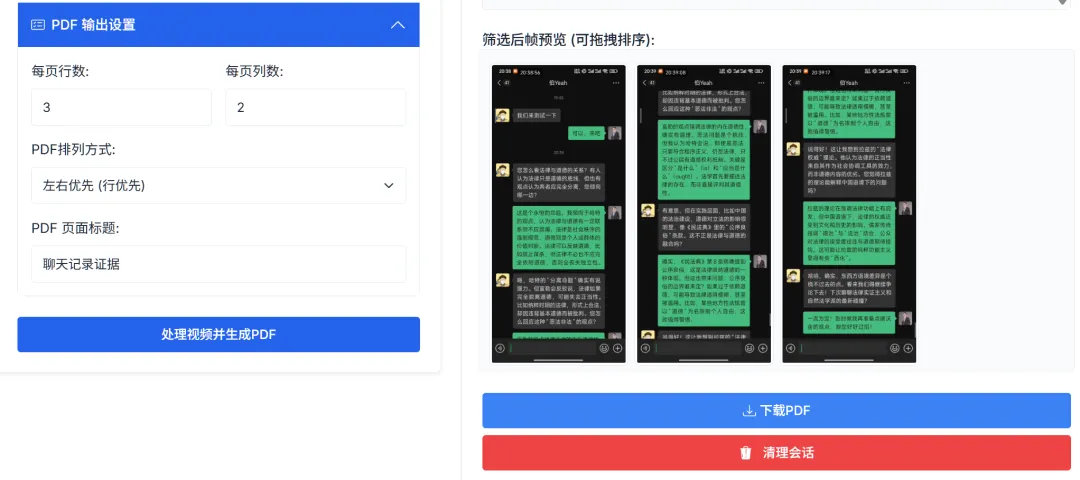
Through PDF output settings, you can configure how screenshots are arranged when outputting the PDF.

After completing all settings and clicking [Process Video and Generate PDF], the status bar on the right will display the specific processing progress and logs.
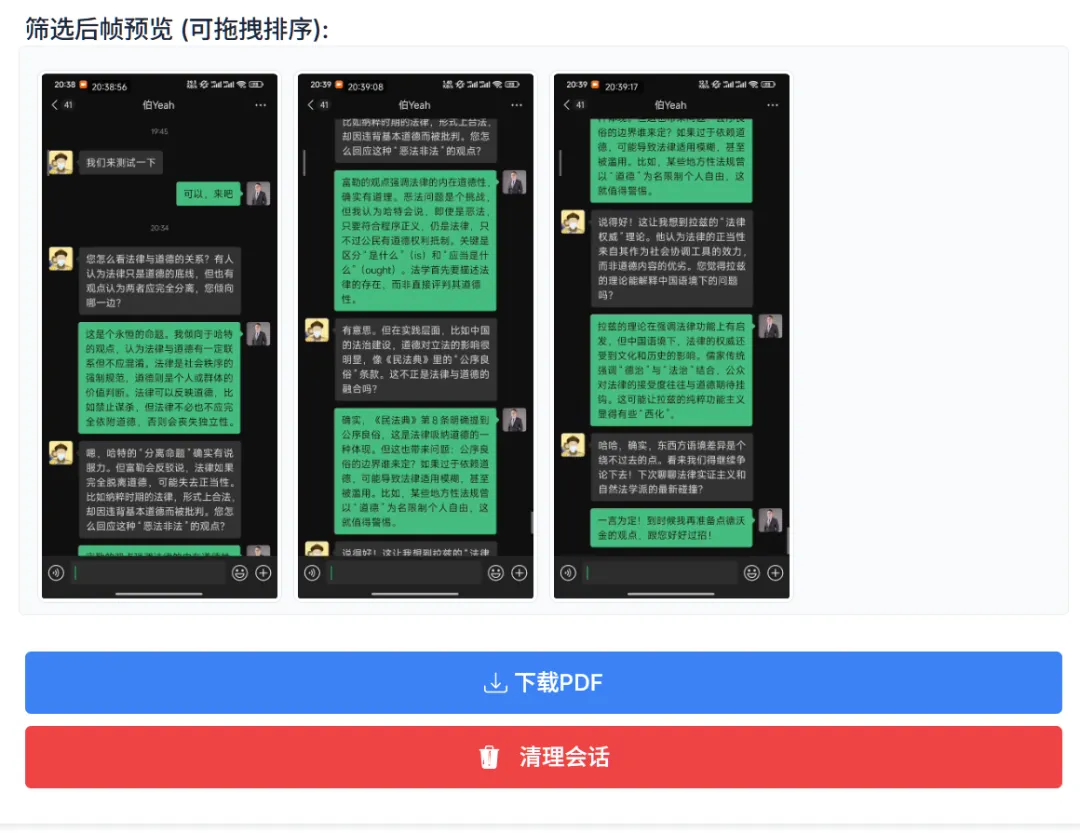
After generation is complete, you can preview the extracted results (double-click to enlarge images). The screenshots are captured with [partial overlap]. If you’re not satisfied with the result, you can adjust parameters and try again.
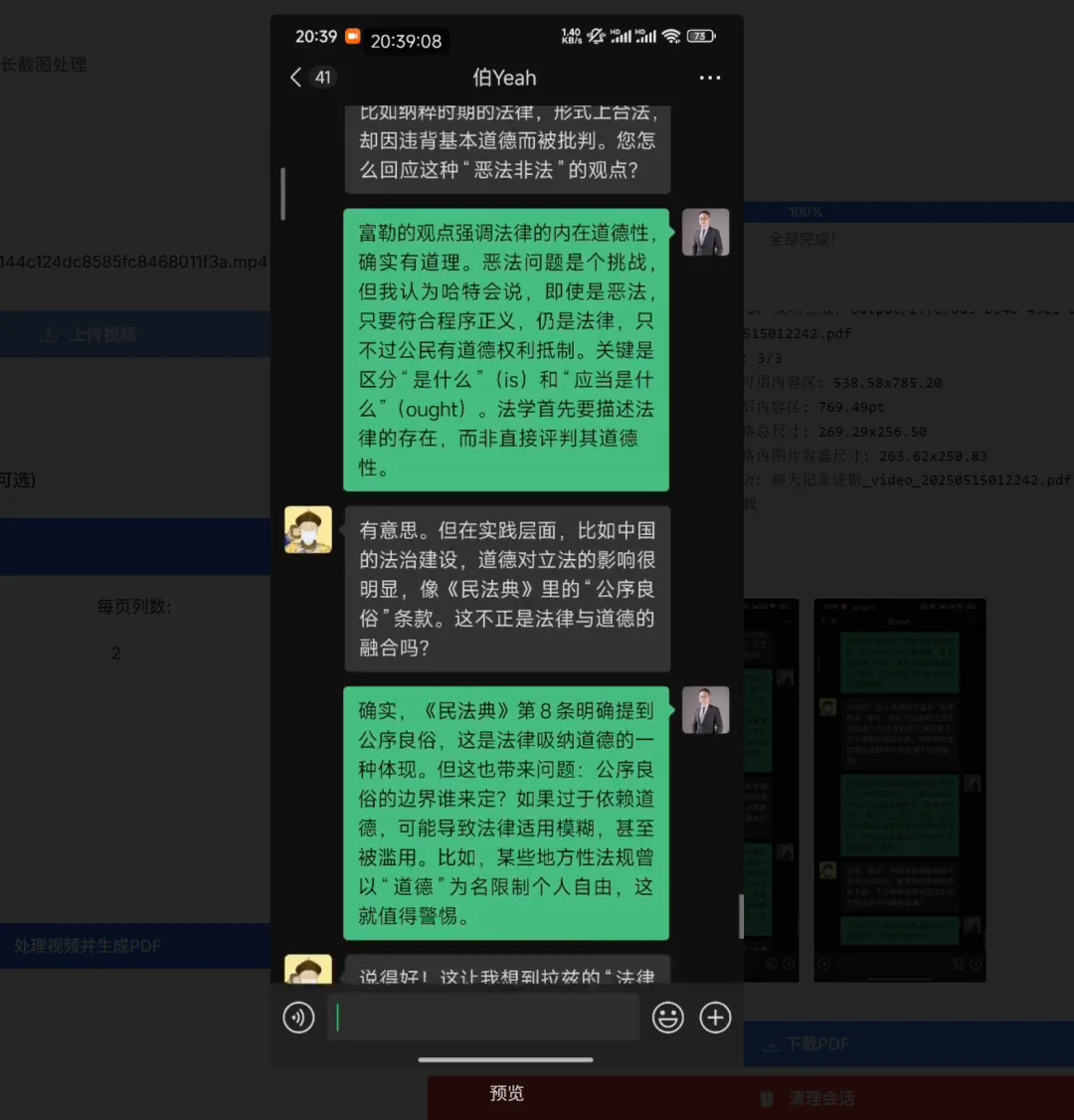 Add image caption, no more than 140 characters (optional)
After confirming the preview is correct, click [Download PDF] to generate the final laid-out file, as shown below.
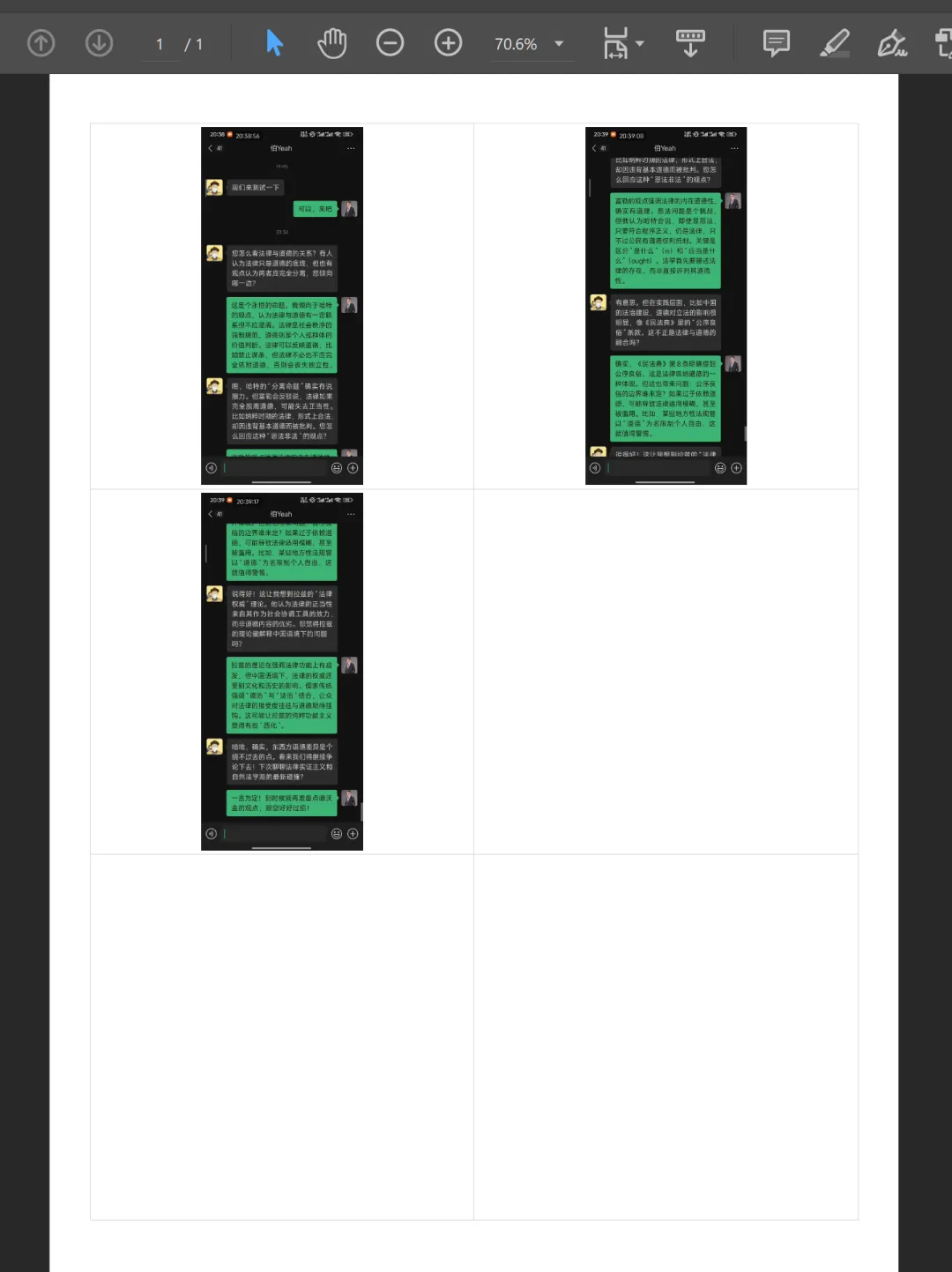 Add image caption, no more than 140 characters (optional)
Long Screenshot Processing
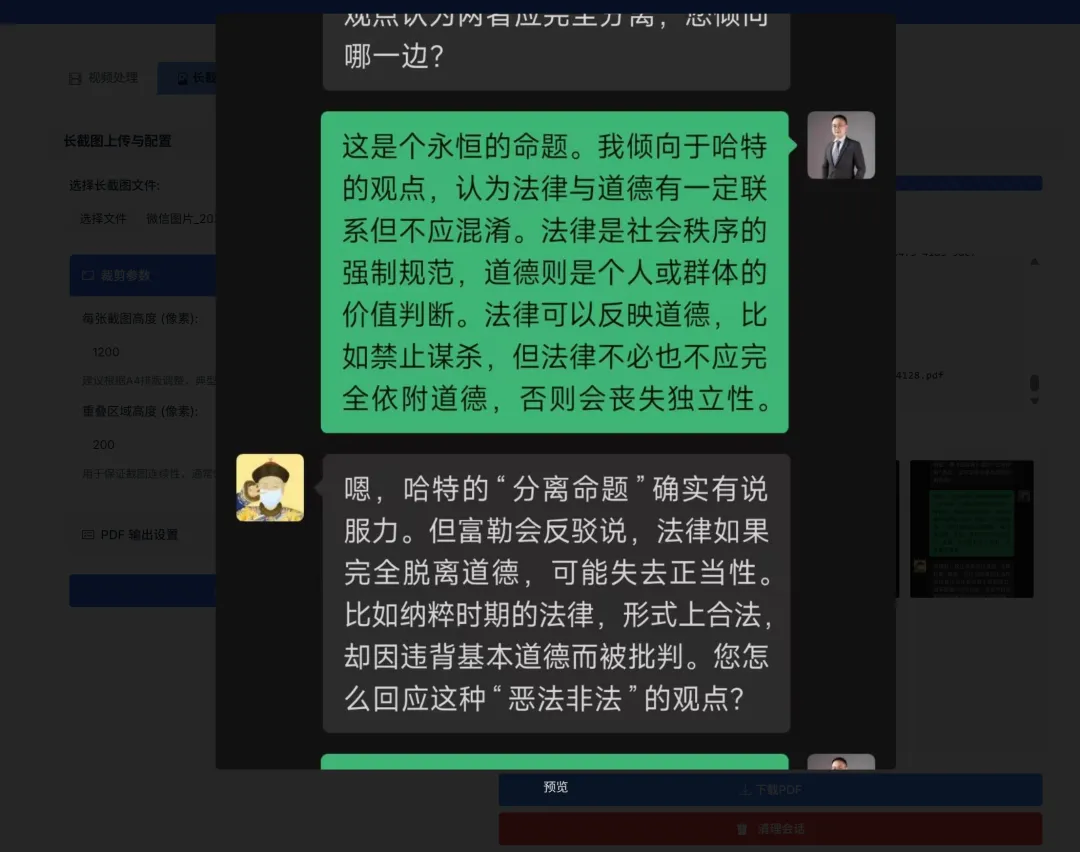
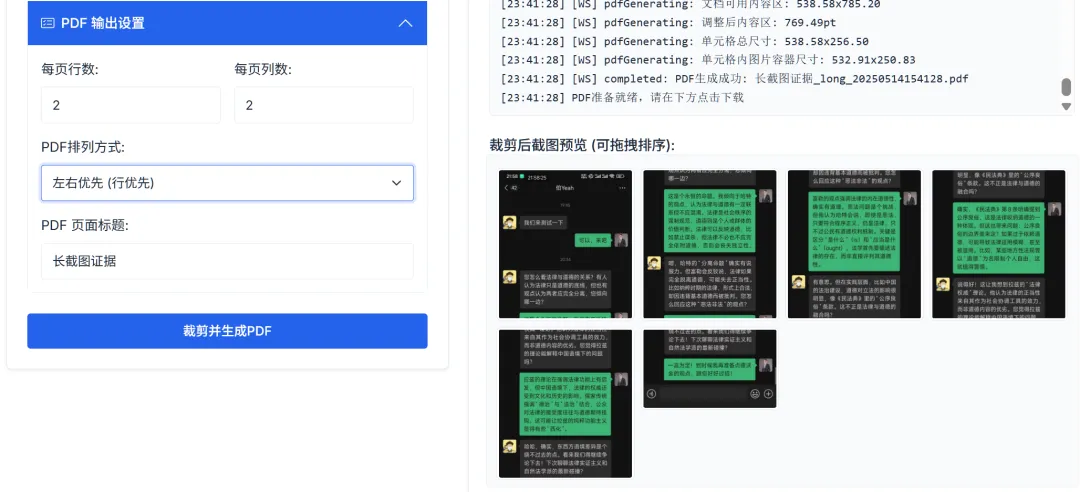
For long screenshots, select an extra-long image (with length limits), set the height of each page and the overlap resolution, click [Crop and Generate PDF], and it will generate multiple screenshots of equal height, each with overlapping portions, directly saved as a well-formatted PDF.
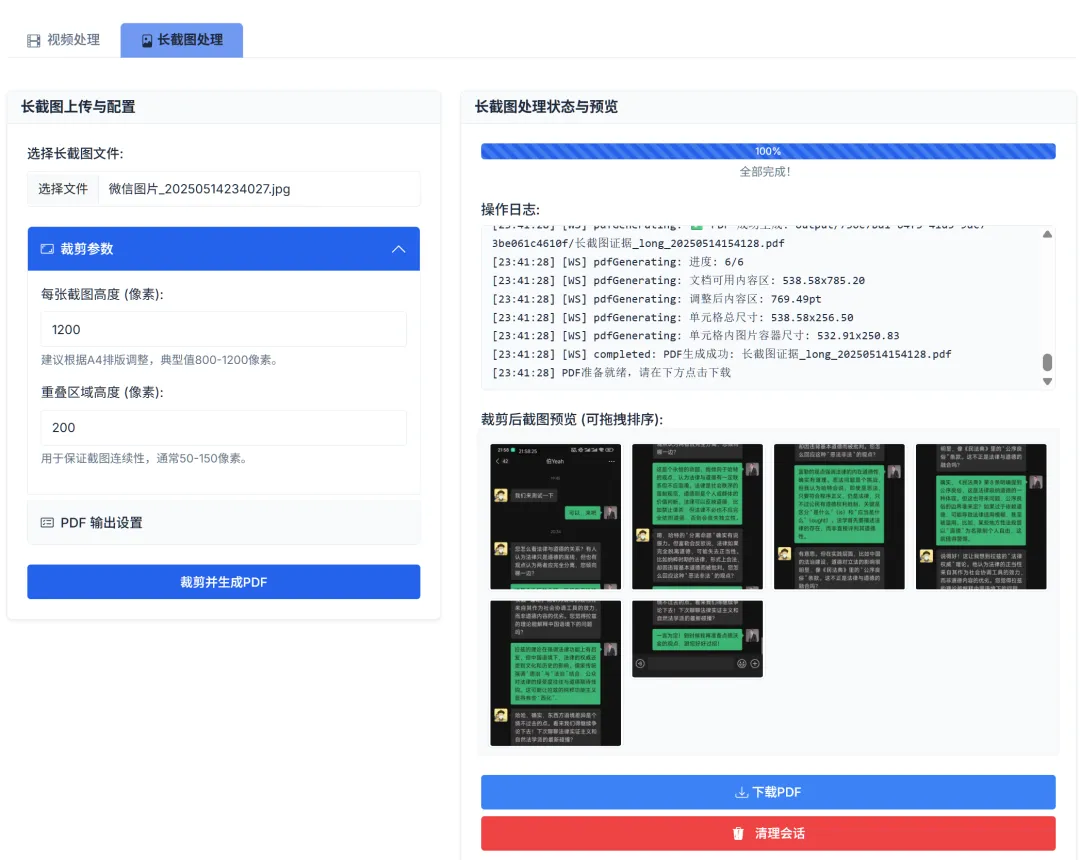
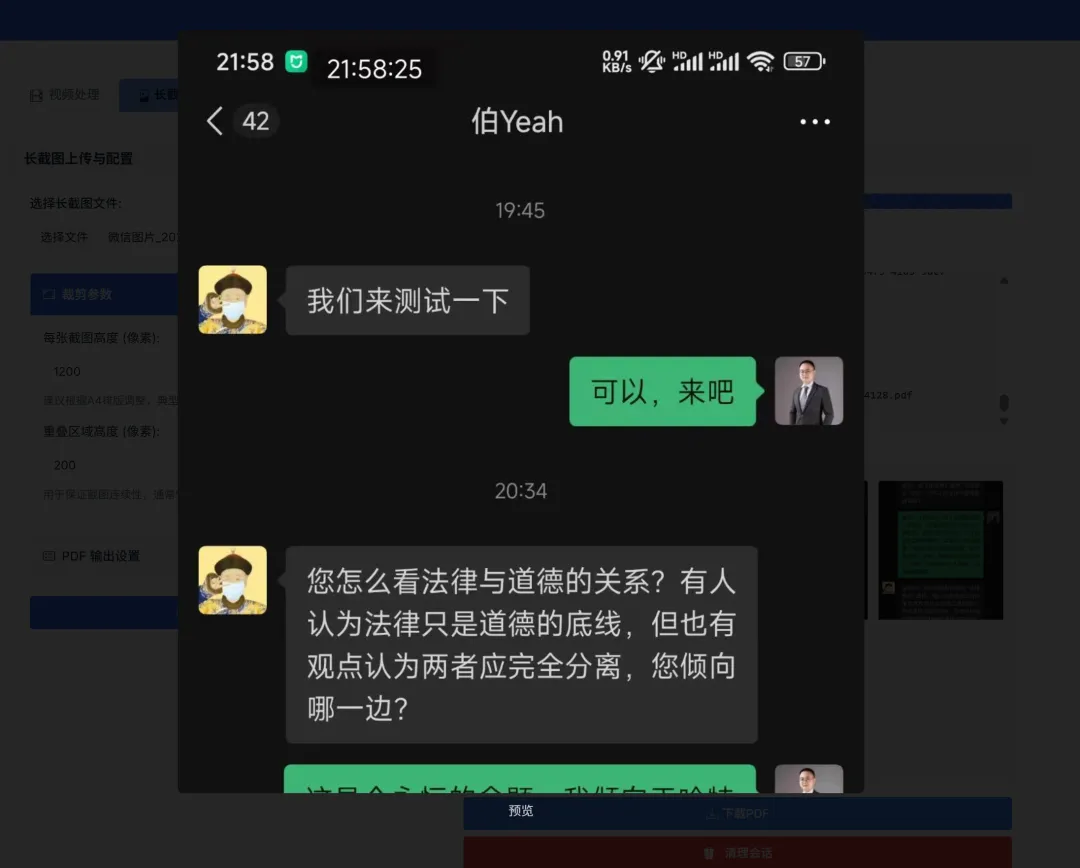
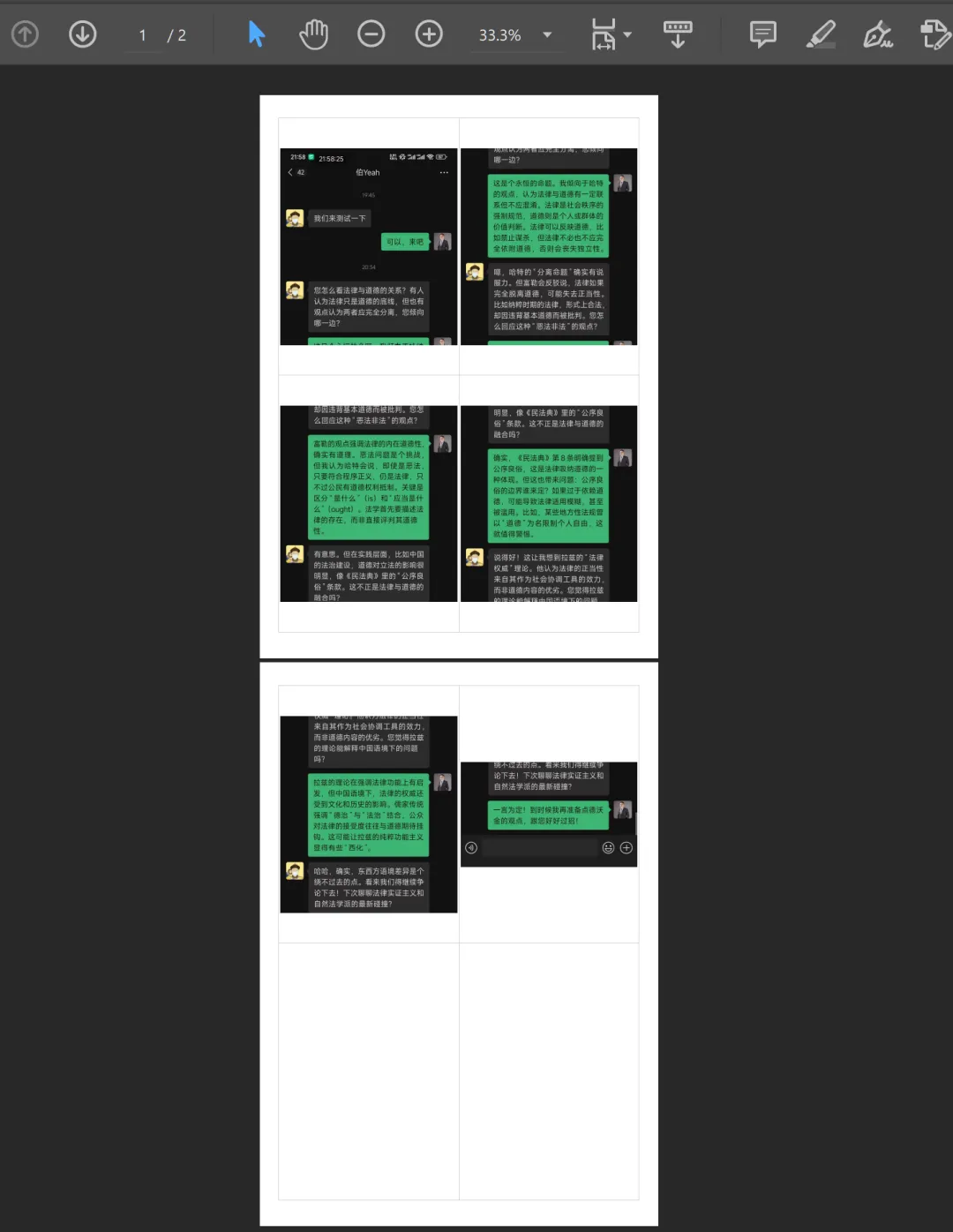
You can also set the exported PDF row and column parameters, and the final result is as follows:
II. Installation Guide
Considering that every time I release a new tool, some readers don’t know how to set up a Python environment, I’ve packaged this as a Docker image for easy deployment.
First, you need to install Docker according to your system.
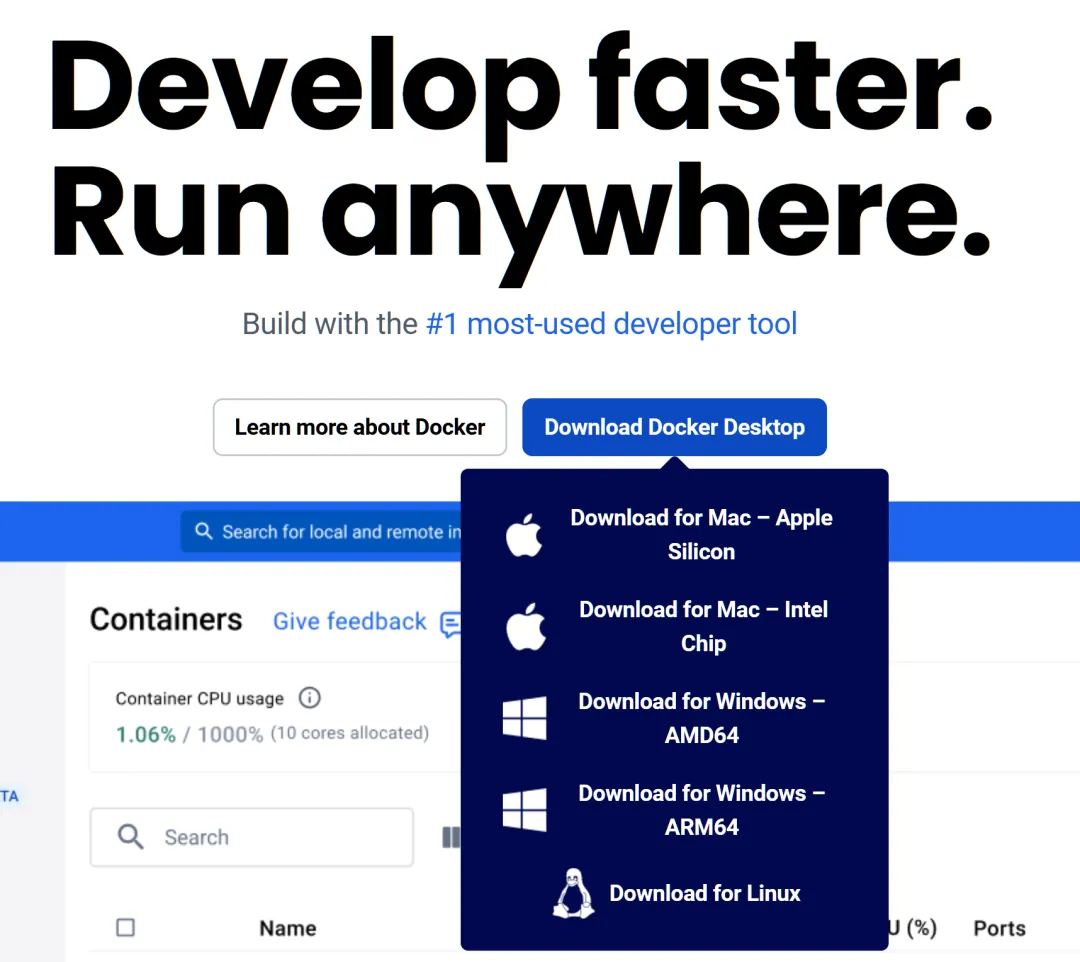
If deploying on a NAS/website, Docker functionality is usually already built in.
After successfully installing and starting Docker, you can pull the image by entering the following command in the terminal:
docker pull ghcr.io/byronleeeee/chat_evidence_tool_web:latest(Optional) Create two folders (local data directory) in your working directory to persist intermediate files:
mkdir temp_sessions_host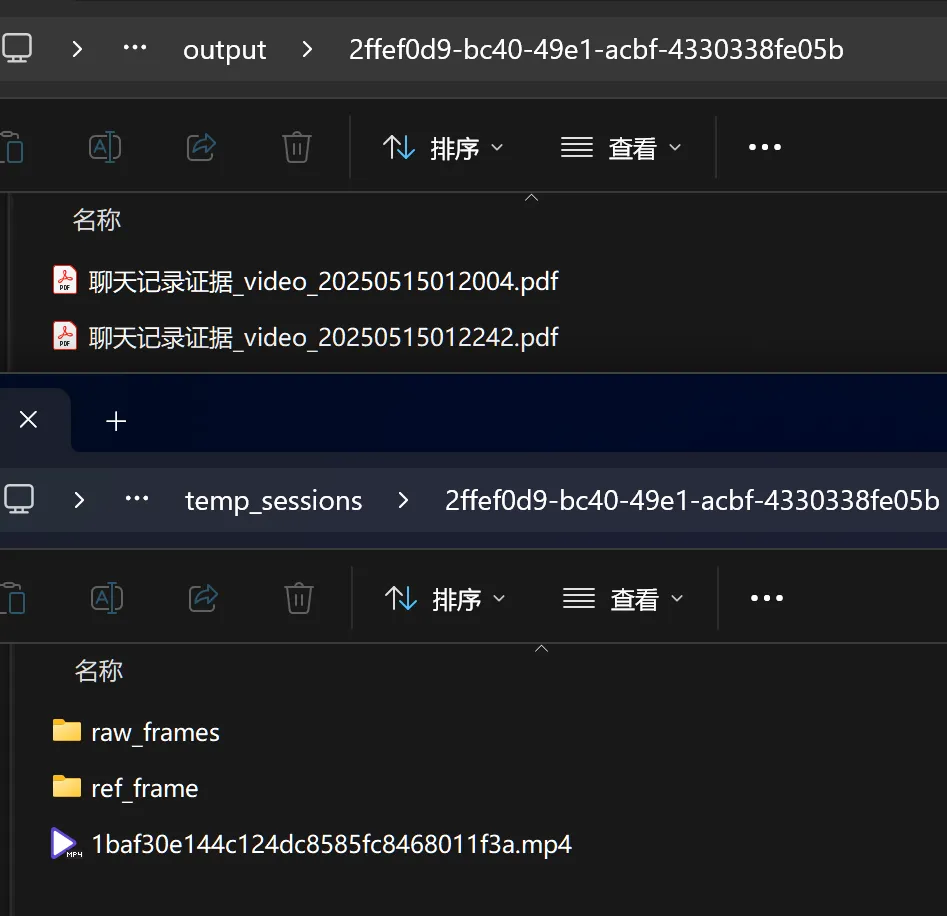
After pulling, you can run the container directly:
docker run -d -p 18765:18765 \Parameter explanation: -d: Run in background -p 18765:18765: Map host port 18765 to container port 18765 -v ./temp_sessions_host:/app/temp_sessions: Mount temporary file directory -v ./output_host:/app/output: Mount PDF output directory —name chat-evidence-tool: Name the container
For Windows devices, simply run the image in Docker Desktop.
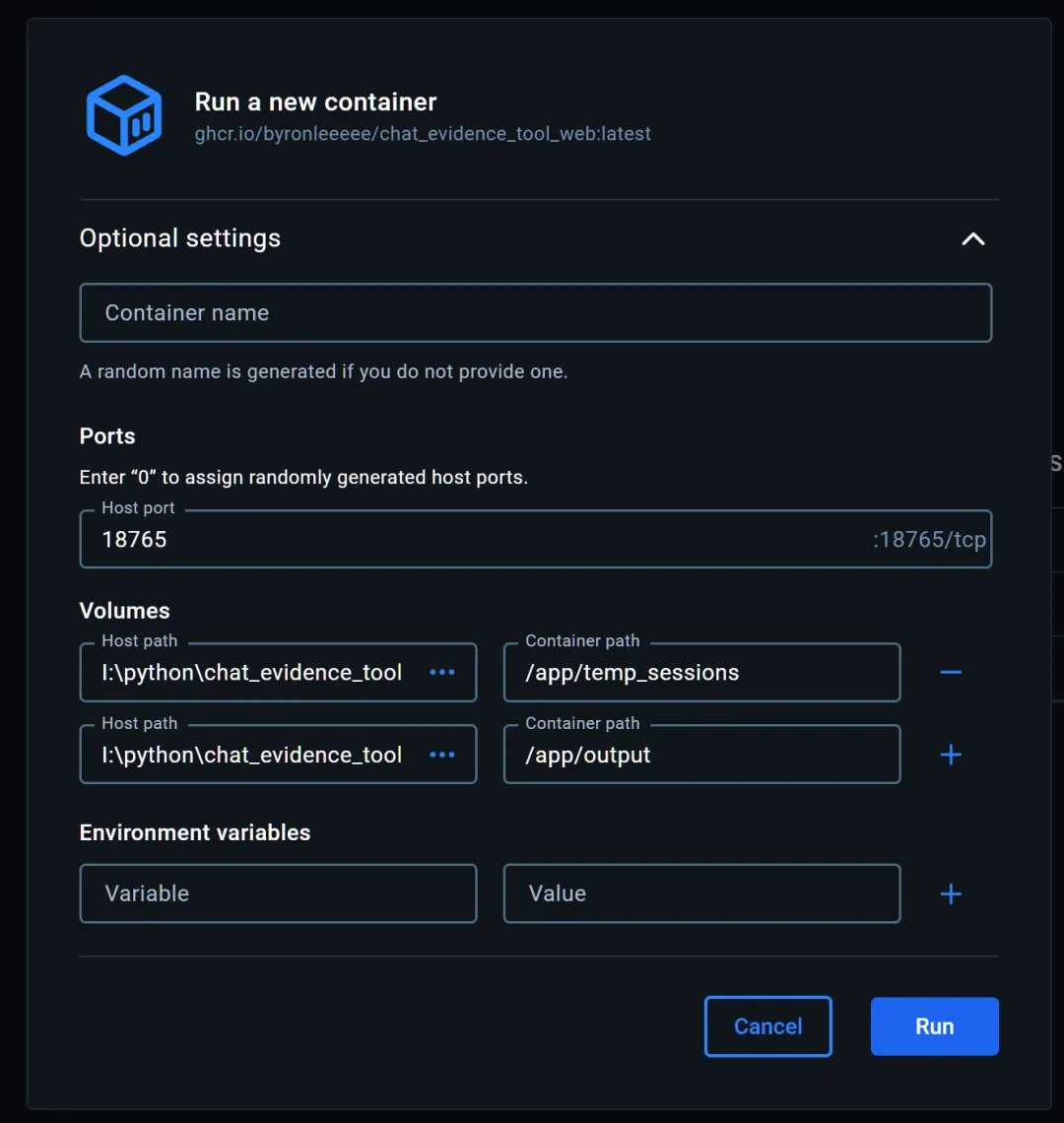
After successful operation, simply open a browser and visit http://127.0.0.1:18765 (or http://your-ip:18765) to use it.
Other devices on the same network (whether phone or computer) can also access the program via http://host-ip:18765.
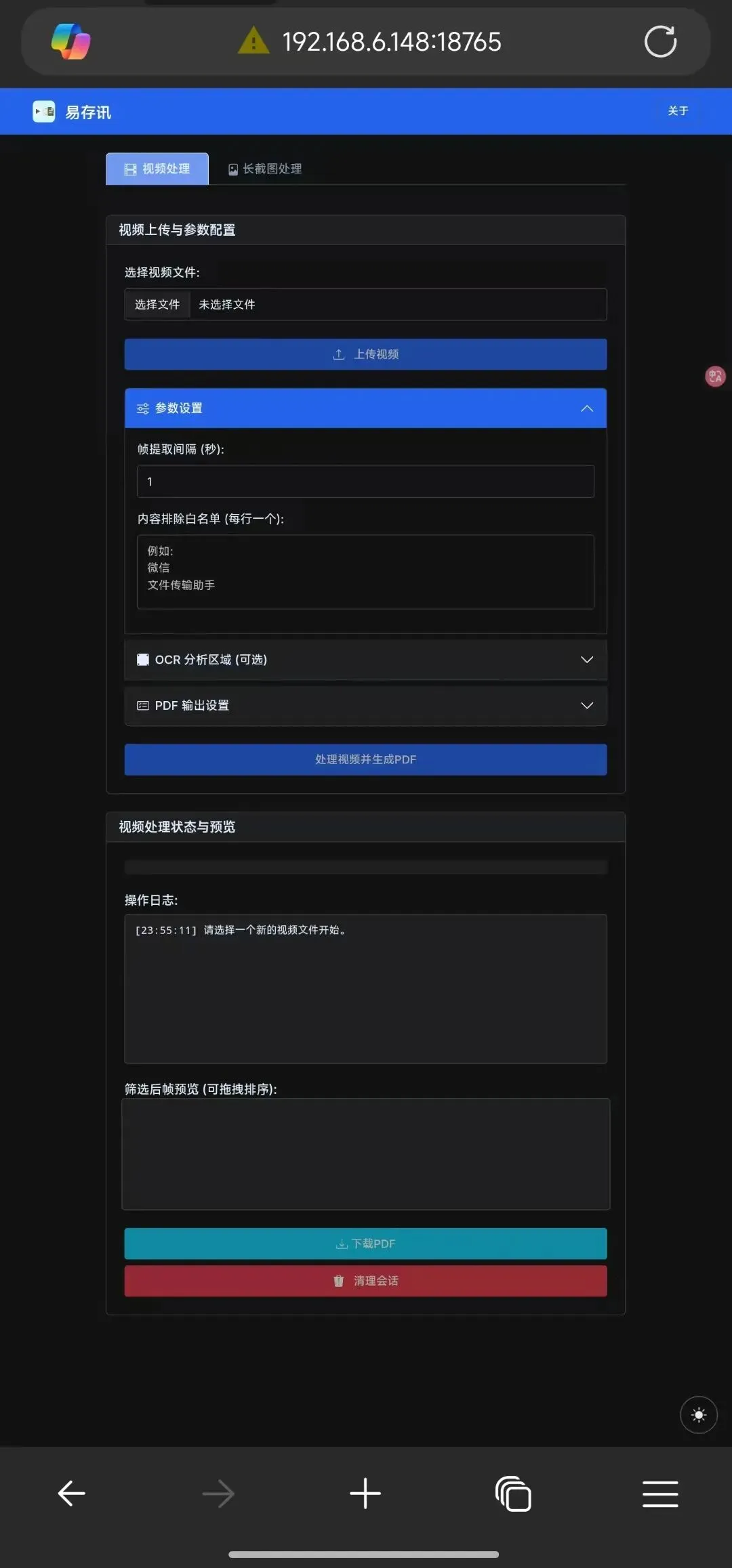
You can instantly screen record/long screenshot on your phone and generate a PDF right away.
III. Common Questions
-
Video processing heavily depends on OCR results. If the video scrolls too fast or the recording frame rate is too low, causing blurry video that prevents OCR from extracting content, the screenshot function may fail. Therefore, maintain a steady scrolling speed when recording.
-
Videos and intermediate processing products (such as screenshots) are all saved locally. This is a purely local application (ffmpeg and the PaddleOCR model are already packaged in the Docker image), so there is no risk of uploading content to third parties.
-
Both ffmpeg and PaddleOCR are relatively lightweight and suitable for most devices. To maximize compatibility, the image uses the CPU version of PaddleOCR. Users who need the GPU version can replace it themselves.
-
Review! Review! Review! Video OCR results are highly correlated with scrolling conditions and frame clarity at the moment of capture. There is a chance of recognition errors leading to incomplete screenshots. Therefore, please review before generating the PDF to avoid missing content.
IV. Technical Description
Screenshot Implementation: FFMPEG
This is an open-source video processing software.
Many colleagues use PotPlayer for per-second capture and then manually select and combine images into PDFs. In fact, PotPlayer’s core component is FFMPEG.
OCR Implementation: PaddleOCR
PaddleOCR is an OCR suite open-sourced by Baidu, based on a lightweight AI model. In my experience, its Chinese OCR capabilities are quite outstanding.
V. Need Help?
If you have questions or suggestions regarding deployment or usage, feel free to follow and contact me.